How to add and launch a task on SEOSPRINT
Tasks on SEOSPRINT allow customers to post requests for simple or routine work, and performers — to complete these tasks for a reward. Most often, tasks are used for promotion: to make a new product more visible, attract users, increase website activity, test a service, collect an initial audience, etc.
The strength of tasks lies in their demand. Thousands of performers on SEOSPRINT are ready to visit your resource and complete assignments. The clearer the conditions and the more attractive the offer, the faster and more actively tasks are completed. Therefore, it is important to pay attention to the description and parameters of the task — the speed of completion and the quality of reports directly depend on this.
In this article
- How to create and configure a task;
- How to send a task for review and launch it;
- What task control buttons (statuses) exist;
- How to fund the task budget;
- How to edit a task.
How to create a task
You can add a task on SEOSPRINT in a few steps:
- Open the Promotion → Tasks section.
- Click “Add task”.
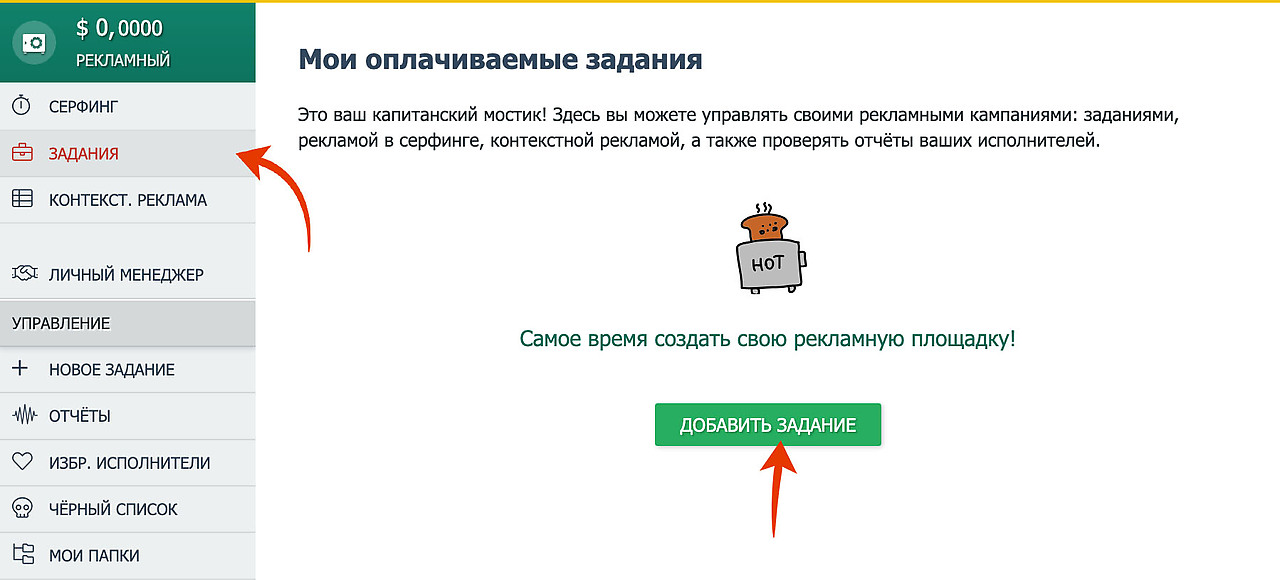
Before proceeding, be sure to review the task publishing rules. This will help you avoid misunderstandings during the review process and speed up moderation.
After creating the task draft, proceed to the settings.
Task setup
First, fill in the fields and set the required parameters. Below is what you should consider for each item.
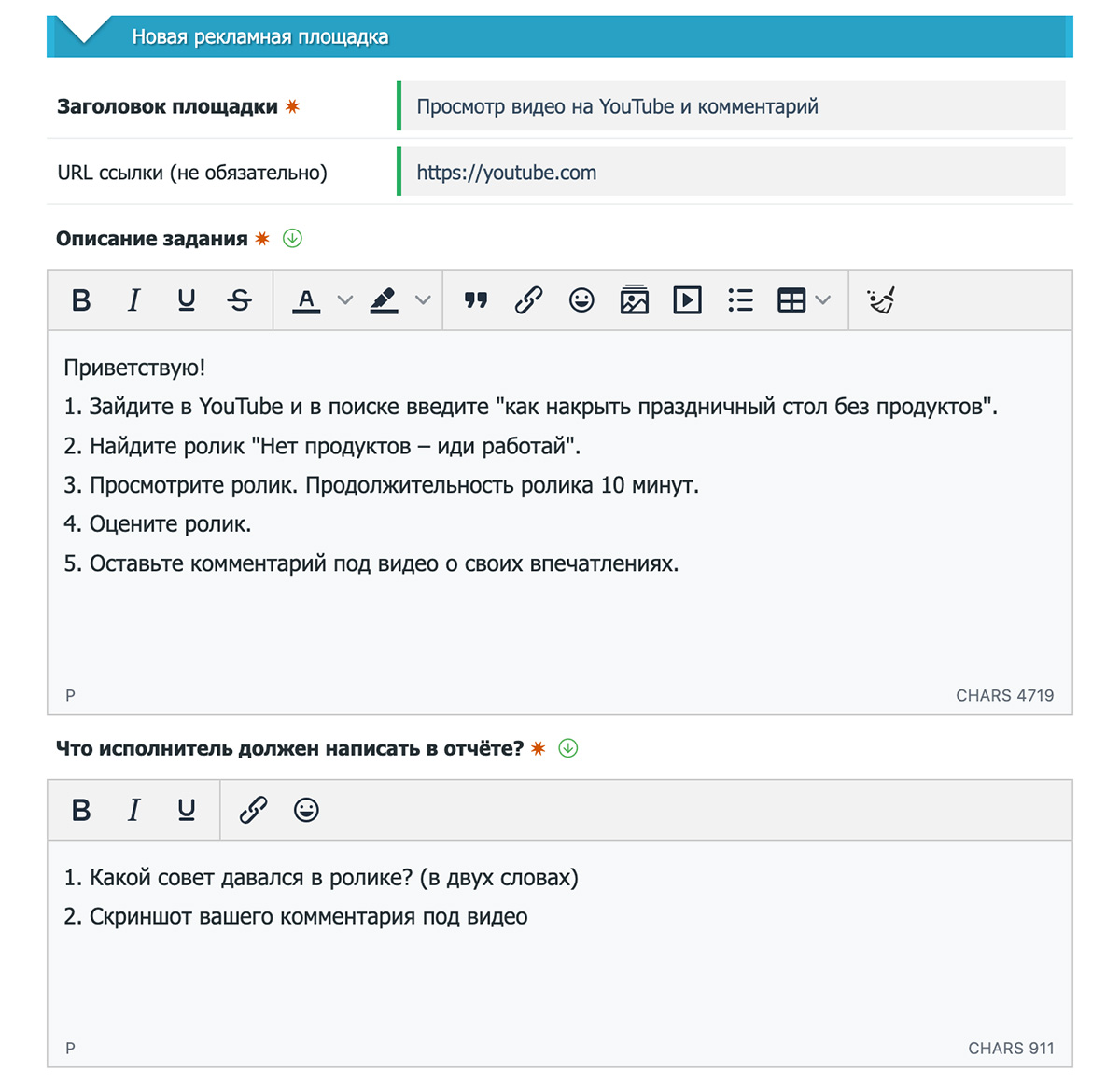
Task title
Write a short title that reflects the task topic so it is clear and attracts performers.
Formatting requirements:
- do not use only uppercase letters;
- do not use emojis, emoticons or pseudo-graphic elements.
The title is the first thing a performer sees in the task list, so it must be readable and clear in meaning.
URL link (optional)
If necessary, specify the URL of the resource you want to promote. For performers, the link will automatically open in a new tab — this is convenient when they need to quickly go to the site and complete an action.
Task description
Write the description so that it is easy to read and does not allow ambiguous interpretation.
A good description is:
- clear and concise;
- without unnecessary introductions;
- explains step by step what needs to be done.
The clearer the conditions, the fewer disputes about reports and the higher the quality of completion. (SEOSPRINT provides separate recommendations for writing task descriptions — they should be followed to improve completion rates.)
How to create a clear and attractive task description
What should the performer write in the report?
Specify clear report requirements: what exactly the performer must provide so that you can quickly and objectively verify the completion.
Important:
- do not repeat the task description or conditions;
- request only the data that actually confirms the task was completed in full.
Examples (depending on the task): link to a profile/post, login, order number, screenshot of a specific section, a code word from the task, etc.
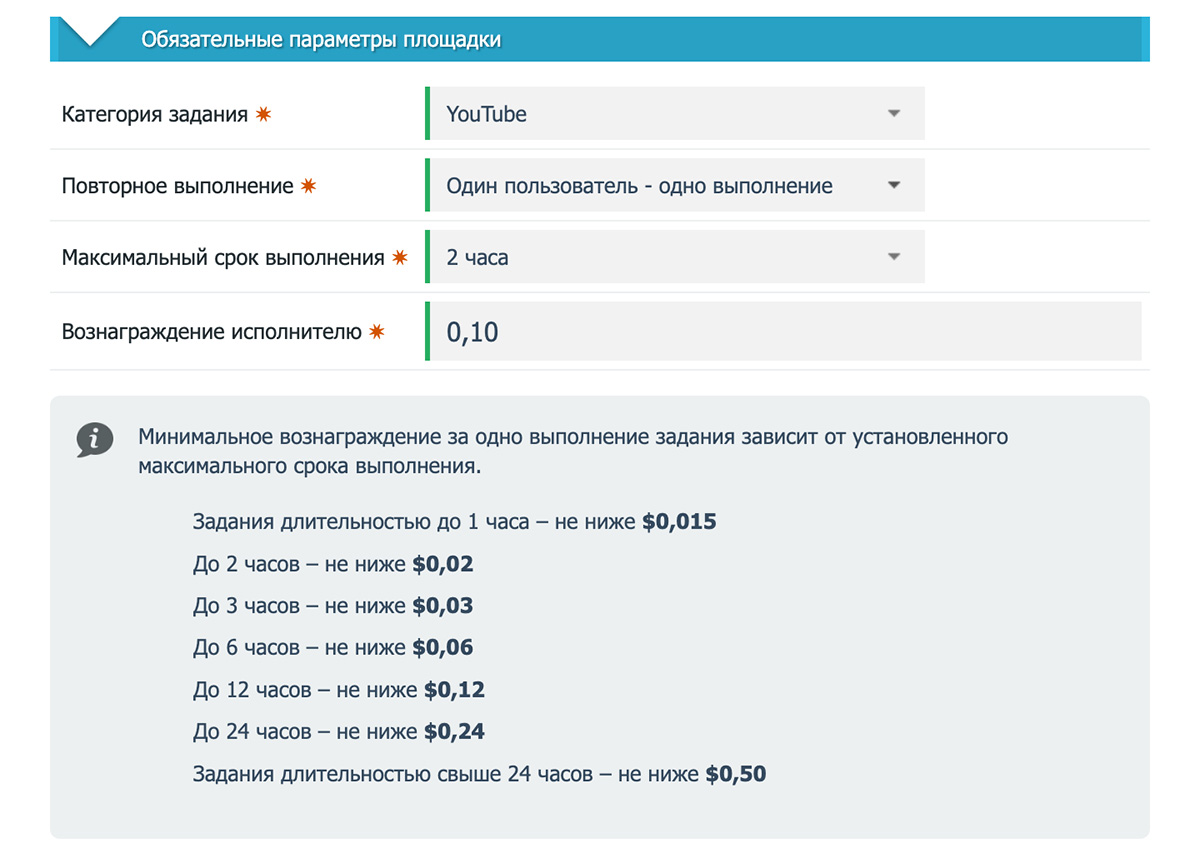 Task category
Select a category that matches the main topic of the task. The correct category affects which audience will see your task and how quickly you receive relevant completions.
Repeat completion
Configure repeat access for the task:
- “One user — one completion” — if repeat completions are not required;
- “Available again after report review” — if the same performer may complete the task again after approval;
- or set a repeat interval from 1 hour to 10 days — this allows the same user to periodically take the task again.
This setting is important for ongoing tasks (for example, recurring actions) where repeated completions are required.
Maximum completion time
Set the maximum completion time — from 1 hour to 30 days.
The time limit should match the realistic ability of an average performer. Choose it carefully and consider an important platform limitation: while the task is taken for execution, it cannot be edited. Therefore, an excessively long time period may “freeze” the ability to make changes if you discover an error in the conditions.
Performer reward
Specify the payment for task completion. To estimate a fair price, go to Earnings → Tasks and review the rates for similar tasks — this will help you understand the market level.
It is also important to remember that all settlements on the platform are made in US dollars, so the reward must be specified in USD.
When all required settings are completed, click “Publish”.

The platform also provides additional flexible settings (optional parameters) that help you target the audience more precisely. If segmentation is important, configure these options separately to attract the performers you need.
How to configure advanced settings for the site
How to launch a task
Important: after saving/publishing, the task is not launched automatically — it must be started manually. A button (icon) on the left shows the current status and allows you to manage the task.
Launch procedure
Click the gray button with the gear icon — the task will be sent to a manager for review.

When the button turns yellow, the task is under moderation.
Wait for approval — this may take from 1 to 24 hours. Therefore, it is better to plan task launches in advance.

If there are no comments from the moderator, the button will turn orange with a pause icon. This means the task is approved and waiting for your action.

Before launching, fund the task budget for at least one completion — otherwise no performer will be able to start working. See the section below for instructions on how to fund the budget.
If the funds are sufficient, click the orange button. When it turns green, the task will be launched and become available to performers.

The platform monitors task quality, so all tasks go through moderation.
If the moderator has comments, a red button will appear on the left. Such a task cannot be launched until the issues are corrected.
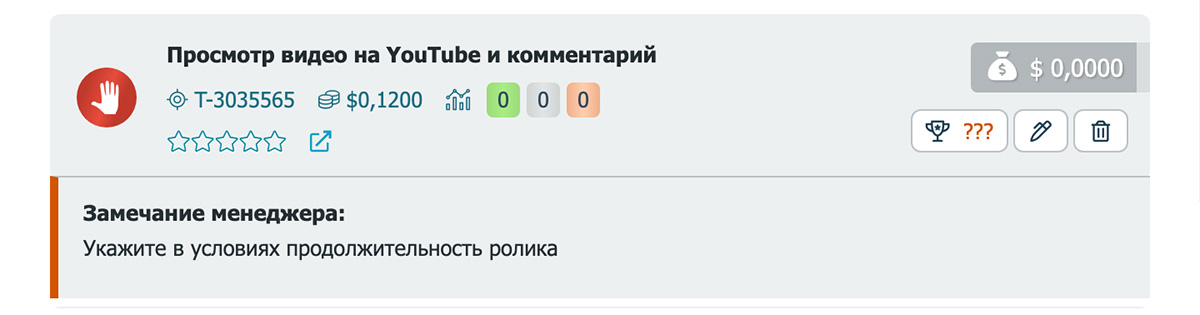
If the reason for the rejection is unclear, it is best to contact your personal manager — they will explain the details and advise what needs to be corrected.
Task control buttons (statuses)
The button on the left reflects the task status. Common statuses include:
 |  |  |  |  |  |
| New | Under review | Stopped | Running | Requires changes | Blocked |
How to fund the task budget
Before launching, fund your advertising account balance — Safe. Funds are transferred from it to the budget of a specific task.
Как пополнить Сейф на SEOSPRINT
This approach helps you manage your budget if you have multiple tasks and spend exactly the amount planned for each one.
To fund the task budget:
Click the “Task budget” panel.

Enter the amount and choose the source:
- Balance — if you use earned funds;
- Safe — if you transfer from the advertising account (which must be funded in advance).
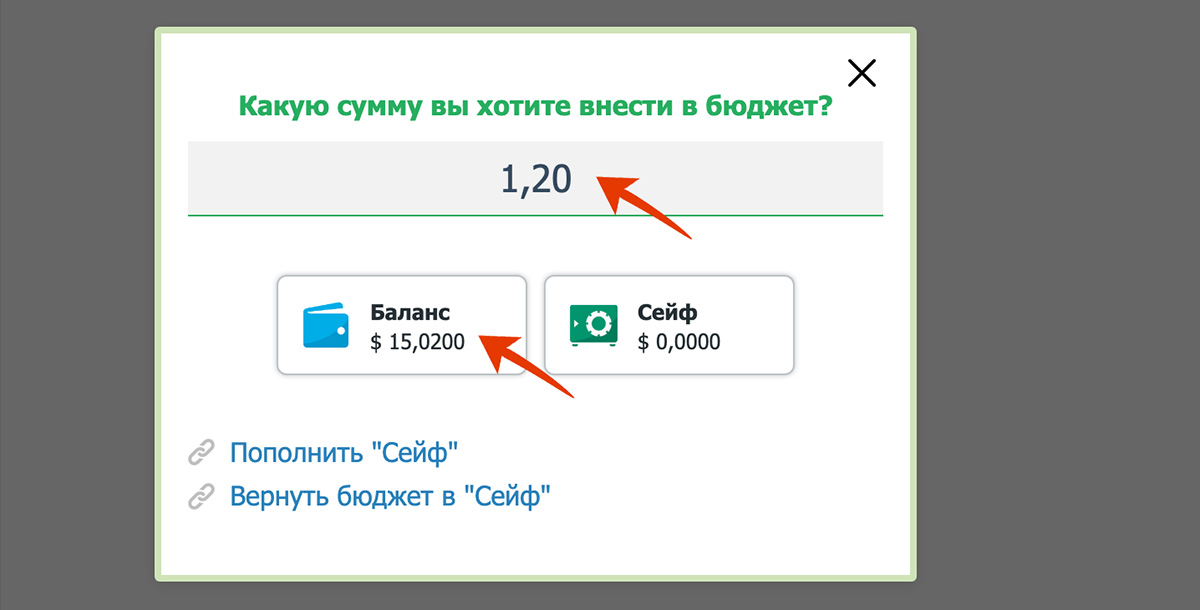
In the same menu you can:
- fund the Safe;
- return the remaining funds to the Safe if you delete the task or want to redistribute the budget to other tasks.
How to edit a task
Before editing, make sure there are no active performers working on the task. If the task is currently in progress, you will need to wait until it becomes available.
To edit the task, click the pen icon in the lower right corner.

Make the necessary changes to the conditions or parameters and save them.
After editing, the task may be sent for moderation again. Wait for approval and then relaunch the task.
Conclusion
Promotion through tasks allows you to quickly launch ideas and receive mass actions from real performers. To ensure your task is completed actively and passes moderation without issues, it is important to:
- write a clear title and structured description;
- separate report requirements from the main conditions;
- set a reasonable payment and remember that higher rewards increase interest;
- properly configure repeat access and deadlines, taking editing limitations into account.
Create your first task and start promotion today — it takes only a few minutes to set up, and SEOSPRINT performers are ready to begin immediately after launch.